Product shadow types, and why your cut-out looks fake
A product without a shadow looks pasted on. The four kinds of shadow, what each one tells the eye, and how to pick one for your whole catalog.
By Luis Hernández · ·
In this post
Why does my cut-out product look fake?
Usually because it has no shadow. When you remove the background, the shadow goes with it, and a product with nothing under it looks like it's floating. A soft shadow where the product touches the surface is often enough to make it look like it's really sitting there.
The four product shadow types
Each one tells the eye something different about where the product is and where the light comes from.
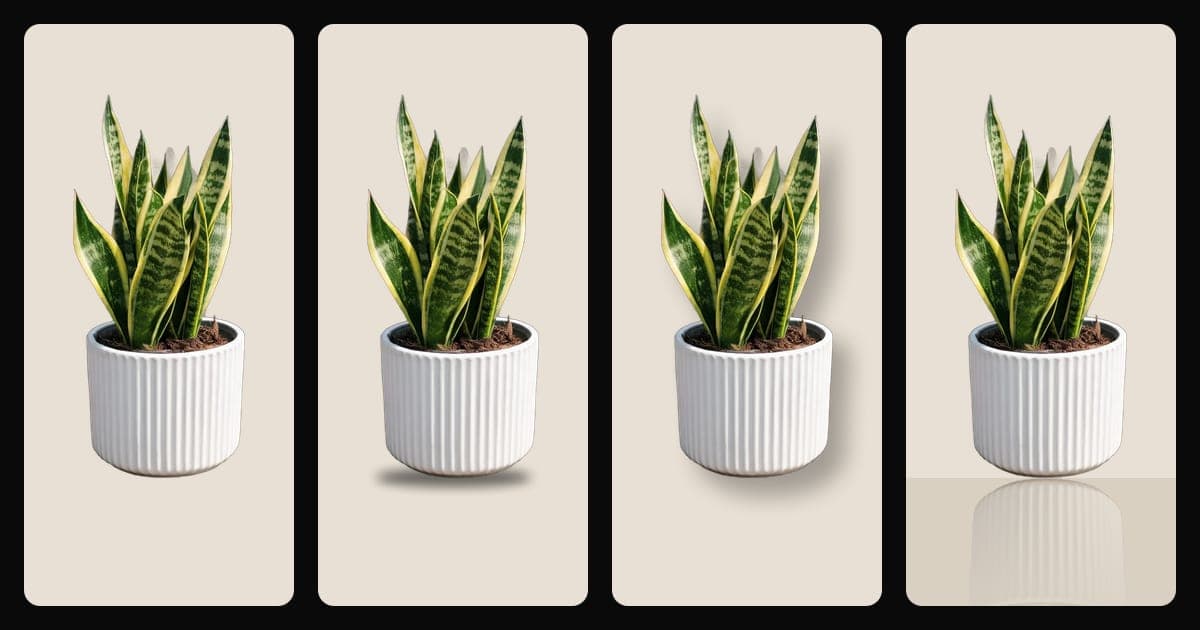
The image above shows the same cut-out with no shadow, then with a contact shadow, a drop shadow and a reflection. A natural shadow can't be drawn: it's the one the original photo already had.
- Contact shadow: a thin, dark, soft line right where the product touches the surface. It's the smallest shadow and the one that matters most.
- Drop shadow: a soft shadow cast to one side or behind the product, as if a light were above and in front. It adds depth, but it's easy to overdo.
- Natural shadow: the shadow the product really cast when it was photographed, kept instead of removed. It's the most believable, and the hardest to keep clean on a cut-out.
- Reflection: a faded mirror image of the product under it, as if it stood on glass or a glossy surface. It suits jewelry, electronics and cosmetics on a dark or glossy set.
Which shadow to use for each product
- Products that stand on a base, like bottles, shoes, mugs and boxes: a contact shadow, maybe with a light drop shadow.
- Flat products shot from above, like clothing laid flat or stationery: a very soft drop shadow, or none at all.
- Shiny or premium products: a reflection, with a contact shadow so the base doesn't vanish.
- Products in a lifestyle scene: the shadow has to match the light of the scene. If the window is on the left, the shadow falls to the right.
Why a cut-out still looks fake, even with a shadow
A shadow helps only if it agrees with the rest of the photo. These are the usual giveaways:
- The shadow points one way and the light on the product comes from another.
- The shadow is too dark or too hard for a soft, diffused light.
- The product floats a few pixels above its shadow, so there's a bright gap between them.
- The cut-out edge is too sharp, or still has a halo of the old background.
- The product was shot from slightly above but placed on a background seen straight on.
- Every product in the catalog has a different shadow, so the set looks pasted together.
How to add a contact shadow that looks real
- Start from a clean cut-out with soft edges. If you shot the product on a cluttered table, remove the background first.
- Put the product on its final background, white or color, before you add the shadow. The same shadow looks different on white than on beige.
- Keep the contact shadow darkest right under the base and let it fade quickly.
- Make it follow the shape of the base: round under a bottle, two points under a pair of shoes.
- Zoom out to thumbnail size. If you notice the shadow before the product, it's too strong.
- Use the same shadow style across the whole catalog.
Adding a contact shadow in Setlys
The contact shadow tool adds that soft shadow under the product, on top of a white or colored background. It starts from your real photo, and the product stays the real one: the shadow is added around it, not painted over it.
Can you use a shadow on a marketplace main image?
It depends on the marketplace, and the rules for main images change. Before you add a shadow to the first photo of a listing, read the marketplace's own image rules, not a blog summary of them, because secondary sources often disagree. Two examples of where to look: Google's Merchant Center image rules, which don't address shadows either way, and Etsy's photo guide.
If you edit or create the image with AI, Merchant Center has a separate rule: every image created with generative AI must carry metadata that says so, such as the IPTC DigitalSourceType tag TrainedAlgorithmicMedia, and that metadata shouldn't be removed (Google Merchant Center Help). Setlys downloads don't write it today, so adding it before you upload is up to you.
On Etsy, keep in mind that a transparent background turns black, so a shadow on a transparent PNG won't show the way you expect: here's why.
One shadow style for the whole catalog
The shadow is part of your visual identity. Pick one type for the white main images and keep it. Setlys remembers your products and approved scenes, so the next photo can start from the same look. And before you publish any edited photo, check the product itself with the fidelity checklist.
So your product doesn't look like it's floating.
A natural shadow under your product, with its real pixels untouched. It costs 1 credit.
Sources
- Google Merchant Center Help: Image link [image_link] · checked October 29, 2026
- Google Merchant Center Help: AI-generated content · checked October 30, 2026
- Etsy Help: How to Add Photos and Videos to Your Listings · checked October 29, 2026